Thứ Tư, 21 tháng 6, 2023

Running Kafka on Kubernetes for local development with Storage class


Running Kafka on Kubernetes for local development with Storage class

In a recent post I showed a setup to run Kafka on Kubernetes locally using Persistent Volumes(PV) and Persistent Volume Claims(PVC), this post covers the setup using Kubernetes Storage Class(SC) and leveraging the default one provisioned automatically by Kind which is the Rancher local-path-provisioner.

This setup is simpler and uses less code than the previous one with the trade off of having a bit less control over the path of data externalized to the host machine while requiring some internal knowledge of Kind to set it up. In general I favor this approach for local development over the one from my previous post.

Strimzi is an awesome simpler alternative to achieve the same, check it out. My goal with this setup here is for learning and to have a more "realistic" Kubernetes setup on local development machine so I opted to not use Strimzi or Helm charts.

I have created and tested these approaches on a Linux Development machine. It should work for Mac and Windows with some minimal adjustments also but I have never tried it.

You can get the full source from Github repo where you will find the files and Quick Start for both aforementioned approaches. To clone the repo git clone git@github.com:mmaia/kafka-local-kubernetes.git.

Pre-reqs, install:

The setup using Storage class

If you checked out the repo described above the setup presented here is under storage-class-setup folder. You will find multiple Kubernetes declarative files in this folder, please notice that you could also combine all files in a single one separating them with a line containing triple dashes ---, if combining them is your preference you can open a terminal and from the storage-class-setup folder run for each in ./kafka-k8s/*; do cat $each; echo "---"; done > local-kafka-combined.yaml this will concatenate all files in a single one called local-kafka-combined.yaml.

The main thing to notice in this setup below compared to the previous one is that you don't have any PV or PVC configuration files this time because we're leveraging the default Rancher local-path-provisioner provided by Kind automatically through it's default Storage class.

I keep them separate to explicitly separate each type in this case and because it's convenient as you can just run kubectl pointing to the directory as described below in the "Running it" section.

kind-config.yaml - This file configures Kind to expose the kafka and schema-registry ports to the local machine host so you can connect your application while developing from your IDE or command line and connect with Kafka running on Kubernetes.

kind-config.yaml - This file configures Kind to expose the kafka and schema-registry ports to the local machine host so you can connect your application while developing from your IDE or command line and connect with Kafka running on Kubernetes it also maps the default path of the Rancher storage provisioner from Kind container to your local host machine.

apiVersion: kind.x-k8s.io/v1alpha4
kind: Cluster
nodes:
  - role: control-plane
  - role: worker
    extraPortMappings:
      - containerPort: 30092 # internal kafka nodeport
        hostPort: 9092 # port exposed on "host" machine for kafka
      - containerPort: 30081 # internal schema-registry nodeport
        hostPort: 8081 # port exposed on "host" machine for schema-registry
    extraMounts:
      - hostPath: ./tmp
        containerPath: /var/local-path-provisioner
        readOnly: false
        selinuxRelabel: false
        propagation: Bidirectional

kafka-network-np.yaml - Sets up the internal Kubernetes network used by the setup.

apiVersion: networking.k8s.io/v1
kind: NetworkPolicy
metadata:
  name: kafka-network
spec:
  ingress:
    - from:
        - podSelector:
            matchLabels:
              network/kafka-network: "true"
  podSelector:
    matchLabels:
      network/kafka-network: "true"

kafka-service.yaml - This file defines the mappings between the internal containers and ports that are exposed, called NodePorts by defaul in Kubernetes nodeports can be used in the range 30000 to 32767.

apiVersion: v1
kind: Service
metadata:
  labels:
    service: kafka
  name: kafka
spec:
  selector:
    service: kafka
  ports:
    - name: internal
      port: 29092
      targetPort: 29092
    - name: external
      port: 30092
      targetPort: 9092
      nodePort: 30092
  type: NodePort

kafka-ss.yaml - This is the definition of Kafka in this setup, this time we use a Stateful Set.

apiVersion: apps/v1
kind: StatefulSet
metadata:
  labels:
    service: kafka
  name: kafka
spec:
  serviceName: kafka
  replicas: 1
  selector:
    matchLabels:
      service: kafka
  template:
    metadata:
      labels:
        network/kafka-network: "true"
        service: kafka
    spec:
      enableServiceLinks: false
      containers:
      - name: kafka
        imagePullPolicy: IfNotPresent
        image: confluentinc/cp-kafka:7.0.1
        ports:
          - containerPort: 29092
          - containerPort: 9092
        env:
          - name: CONFLUENT_SUPPORT_CUSTOMER_ID
            value: "anonymous"
          - name: KAFKA_ADVERTISED_LISTENERS
            value: "INTERNAL://kafka:29092,LISTENER_EXTERNAL://kafka:9092"
          - name: KAFKA_AUTO_CREATE_TOPICS_ENABLE
            value: "true"
          - name: KAFKA_BROKER_ID
            value: "1"
          - name: KAFKA_DEFAULT_REPLICATION_FACTOR
            value: "1"
          - name: KAFKA_INTER_BROKER_LISTENER_NAME
            value: "INTERNAL"
          - name: KAFKA_LISTENERS
            value: "INTERNAL://:29092,LISTENER_EXTERNAL://:9092"
          - name: KAFKA_LISTENER_SECURITY_PROTOCOL_MAP
            value: "INTERNAL:PLAINTEXT,LISTENER_EXTERNAL:PLAINTEXT"
          - name: KAFKA_NUM_PARTITIONS
            value: "1"
          - name: KAFKA_OFFSETS_TOPIC_REPLICATION_FACTOR
            value: "1"
          - name: KAFKA_LOG_CLEANUP_POLICY
            value: "compact"
          - name: KAFKA_ZOOKEEPER_CONNECT
            value: "zookeeper:2181"
        resources: {}
        volumeMounts:
          - mountPath: /var/lib/kafka/data
            name: kafka-data
      hostname: kafka
      restartPolicy: Always
  volumeClaimTemplates:
    - metadata:
        name: kafka-data
      spec:
        accessModes:
          - ReadWriteOnce
        resources:
          requests:
            storage: 1Gi

The remaining files are declarative Kubernetes configurations files to schema-registry and zookeeper.

schema-registry-deployment.yaml

apiVersion: apps/v1
kind: Deployment
metadata:
  labels:
    service: schema-registry
  name: schema-registry
spec:
  replicas: 1
  selector:
    matchLabels:
      service: schema-registry
  strategy: {}
  template:
    metadata:
      labels:
        network/kafka-network: "true"
        service: schema-registry
    spec:
      enableServiceLinks: false
      containers:
        - env:
            - name: SCHEMA_REGISTRY_HOST_NAME
              value: "schema-registry"
            - name: SCHEMA_REGISTRY_KAFKASTORE_BOOTSTRAP_SERVERS
              value: "kafka:29092"
            - name: SCHEMA_REGISTRY_LISTENERS
              value: "http://0.0.0.0:30081"
          image: confluentinc/cp-schema-registry:7.0.1
          name: schema-registry
          ports:
            - containerPort: 30081
          resources: {}
      hostname: schema-registry
      restartPolicy: Always

schema-registry-service.yaml

apiVersion: v1
kind: Service
metadata:
  labels:
    service: schema-registry
  name: schema-registry
spec:
  ports:
    - port: 30081
      name: outport
      targetPort: 30081
      nodePort: 30081
  type: NodePort
  selector:
    service: schema-registry

zookeeper-service.yaml

apiVersion: v1
kind: Service
metadata:
  labels:
    service: zookeeper
  name: zookeeper
spec:
  ports:
    - name: "2181"
      port: 2181
      targetPort: 2181
  selector:
    service: zookeeper

zookeeper-ss.yaml - Again the main difference this time is the usage of Stateful Set.

apiVersion: apps/v1
kind: StatefulSet
metadata:
  labels:
    service: zookeeper
  name: zookeeper
spec:
  serviceName: zookeeper
  replicas: 1
  selector:
    matchLabels:
      service: zookeeper
  template:
    metadata:
      labels:
        network/kafka-network: "true"
        service: zookeeper
    spec:
      enableServiceLinks: false
      containers:
        - name: zookeeper
          imagePullPolicy: IfNotPresent
          image: confluentinc/cp-zookeeper:7.0.1
          ports:
            - containerPort: 2181
          env:
            - name: ZOOKEEPER_CLIENT_PORT
              value: "2181"
            - name: ZOOKEEPER_DATA_DIR
              value: "/var/lib/zookeeper/data"
            - name: ZOOKEEPER_LOG_DIR
              value: "/var/lib/zookeeper/log"
            - name: ZOOKEEPER_SERVER_ID
              value: "1"
          resources: {}
          volumeMounts:
            - mountPath: /var/lib/zookeeper/data
              name: zookeeper-data
            - mountPath: /var/lib/zookeeper/log
              name: zookeeper-log
      hostname: zookeeper
      restartPolicy: Always
  volumeClaimTemplates:
    - metadata:
        name: zookeeper-data
      spec:
        accessModes:
          - ReadWriteOnce
        resources:
          requests:
            storage: 250Mi
    - metadata:
        name: zookeeper-log
      spec:
        accessModes:
          - ReadWriteOnce
        resources:
          requests:
            storage: 250Mi

Running it

  1. Open a terminal and cd to the storage-class-setup folder.
  2. Create a folder called "tmp", this is where the storage will be automatically provisioned by the default Kind storage class.
  3. Run kind specifying configuration: kind create cluster --config=kind-config.yml. This will start a Kind kubernetes control plane + worker.
  4. Run kubernetes configuration for kafka kubectl apply -f kafka-k8s
  5. When done stop kubernetes objects: kubectl delete -f kafka-k8s and then if you want also stop the kind cluster which will also delete the storage on the host machine: kind delete cluster.

After running the kubectl apply command(step 4 above) check your local tmp folder where you will find the automated storage mapped to your local host disk, notice that those folders will be deleted when you shutdown the Kind cluster but they will persist over pod restarts of Kafka and zookeeper.

Connecting a Kafka client

I decided to add this section because I commonly see developers struggling to connect their Kafka clients from the IDE or local dev machine to a local Kafka running on docker, docker-compose or kubernetes, mostly because the client gives an error that it can't find host kafka when running.

There are many ways to solve that I will explain a few ways here.

  1. The simplest way to do it is to add kafka and schema-registry to your /etc/hosts file in the host machine, so when the broker configures LISTENER_EXTERNAL://kafka:9092 which will be advertised to the kafka client the client will resolve kafka to localhost and it will just work. In some configurations you do the same with schema-registry. Some people don't like to do this so there are options.

  2. Change the configuration on your compose file or kubernetes kafka config file to LISTENER_EXTERNAL://localhost:9092, so now when in your local client you specify kafka broker address to localhost:9092 it will just work as it will match the advertised address the client received from the broker. The downside of doing this is that if you decide to package your application to run locally in a container inside the docker-compose or kubernetes network the call will fail as localhost will then point to the application container / pod instead of kafka.

  3. When using Kubernetes use a tool like Telepresence to expose and route kubernetes ports.

  4. When using docker-compose you might leverage the docker internal address mappings as describe nicely in this article.

You can find a detailed explanation on why this happens in this Confluent blog post.

That's it, it's done, you have a functional local Kafka +
Schema Registry running on Kubernetes that you can reach from your application running on your developer machine or IDE.

Thứ Hai, 10 tháng 4, 2023

remove old tags from docker register

Find and delete tags - Keep 4 newest directory

find data/docker/registry/v2/repositories/*/_manifests/tags/ -maxdepth 3 -type f -printf '%T@\t%p\n'|sort -nr|tail -n+5|cut -f 2- -d " " | grep -v 'latest' | xargs -i rm {}

 Re-config repo

 docker exec <docker-name> registry garbage-collect /etc/docker/registry/config.yml --delete-untagged

Thứ Tư, 5 tháng 4, 2023

WSO2 APIM Port need to OPEN

 To                         Action      From
--                         ------      ----
22/tcp                     ALLOW       Anywhere
9443/tcp                   ALLOW       Anywhere
8280                       ALLOW       Anywhere
8243                       ALLOW       Anywhere
9611/tcp                   ALLOW       Anywhere
9711/tcp                   ALLOW       Anywhere
9099/tcp                   ALLOW       Anywhere
8000/tcp                   ALLOW       Anywhere


Thứ Sáu, 24 tháng 3, 2023

Disable Automatic Updates on Ubuntu 20.04 Focal Fossa Linux

Open and edit the /etc/apt/apt.conf.d/20auto-upgrades using the bellow command:

$ sudoedit /etc/apt/apt.conf.d/20auto-upgrades

Change content:
FROM:

APT::Periodic::Update-Package-Lists "1";
APT::Periodic::Unattended-Upgrade "1";

TO:

APT::Periodic::Update-Package-Lists "0";
APT::Periodic::Download-Upgradeable-Packages "0";
APT::Periodic::AutocleanInterval "0";
APT::Periodic::Unattended-Upgrade "1";

All done.

Thứ Ba, 21 tháng 3, 2023

Use Multus CNI in Kubernetes

 In this post I will show you how you can use Multus CNI to create Kubernetes pods with multiple interfaces.

 From : https://devopstales.github.io/kubernetes/multus/


Install a default network

Our installation method requires that you first have installed Kubernetes and have configured a default network – that is, a CNI plugin that’s used for your pod-to-pod connectivity. After installing Kubernetes, you must install a default network CNI plugin. In this demo I will use Flannel for the sake of simplicity.

# install flanel:
wget https://raw.githubusercontent.com/flannel-io/flannel/master/Documentation/kube-flannel.yml
nano kube-flannel.yml
...
        args:
        - --ip-masq
        - --kube-subnet-mgr
        - --iface=enp0s8

kubectl apply -f kube-flannel.yml

Install Multus

Now we can install Multus. The recommended method to deploy Multus is to deploy using a Daemonset, this spins up pods which install a Multus binary and configure Multus for usage.

kubectl apply -f https://raw.githubusercontent.com/k8snetworkplumbingwg/multus-cni/master/deployments/multus-daemonset-thick-plugin.yml

kubectl get pods --all-namespaces | grep -i multus

You may further validate that it has ran by looking at the /etc/cni/net.d/ directory and ensure that the auto-generated /etc/cni/net.d/00-multus.conf exists. Check the multus binary is exists under /opt/cni/bin.

ll /opt/cni/bin/
total 98044
-rwxr-xr-x. 1 root root  3254624 Sep  9  2020 bandwidth
-rwxr-xr-x. 1 root root  3581192 Sep  9  2020 bridge
-rwxr-xr-x. 1 root root  9837552 Sep  9  2020 dhcp
-rwxr-xr-x. 1 root root  4699824 Sep  9  2020 firewall
-rwxr-xr-x. 1 root root  2650368 Sep  9  2020 flannel
-rwxr-xr-x. 1 root root  3274160 Sep  9  2020 host-device
-rwxr-xr-x. 1 root root  2847152 Sep  9  2020 host-local
-rwxr-xr-x. 1 root root  3377272 Sep  9  2020 ipvlan
-rwxr-xr-x. 1 root root  2715600 Sep  9  2020 loopback
-rwxr-xr-x. 1 root root  3440168 Sep  9  2020 macvlan
-rwxr-xr-x. 1 root root 42554869 Jan 15 10:44 multus
-rwxr-xr-x. 1 root root  3048528 Sep  9  2020 portmap
-rwxr-xr-x. 1 root root  3528800 Sep  9  2020 ptp
-rwxr-xr-x. 1 root root  2849328 Sep  9  2020 sbr
-rwxr-xr-x. 1 root root  2503512 Sep  9  2020 static
-rwxr-xr-x. 1 root root  2820128 Sep  9  2020 tuning
-rwxr-xr-x. 1 root root  3377120 Sep  9  2020 vlan

Create NetworkAttachmentDefinition

The first thing we’ll do is create configurations for each of the additional interfaces that we attach to pods. We’ll do this by creating Custom Resources. Each configuration we well add is a CNI configuration. If you’re not familiar with them, let’s break them down quickly.Here’s an example CNI configuration:

cat <<EOF | kubectl create -f -
apiVersion: "k8s.cni.cncf.io/v1"
kind: NetworkAttachmentDefinition
metadata:
  name: macvlan-conf
spec:
  config: '{
      "cniVersion": "0.3.0",
      "type": "macvlan",
      "master": "enp0s9",
      "mode": "bridge",
      "ipam": {
        "type": "host-local",
        "subnet": "172.17.9.0/24",
        "rangeStart": "172.17.9.240",
        "rangeEnd": "172.17.9.250",
        "routes": [
          { "dst": "0.0.0.0/0" }
        ],
        "gateway": "172.17.9.1"
      }
    }'
EOF
  • cniVersion: Tells each CNI plugin which version is being used and can give the plugin information if it’s using a too late (or too early) version.
  • master: this parameter should match the interface name on the hosts in your cluster. Can not be the same interface used by the default network!!!
  • type: This tells CNI which binary to call on disk. Each CNI plugin is a binary that’s called. Typically, these binaries are stored in /opt/cni/bin on each node, and CNI executes this binary. In this case we’ve specified the macvlan binary. If this is your first time installing Multus, you might want to verify that the plugins that are in the “type” field are actually on disk in the /opt/cni/bin directory.
  • ipam: IP address allocation configuration. The type can an be the following:
    • dhcp: Runs a daemon on the host to make DHCP requests on behalf of a container
    • host-local: Maintains a local database of allocated IPs
    • static: Allocates static IPv4/IPv6 addresses to containers
    • whereabouts: A CNI IPAM plugin that assigns IP addresses cluster-wide

NetworkAttachmentDefinition CNI Types

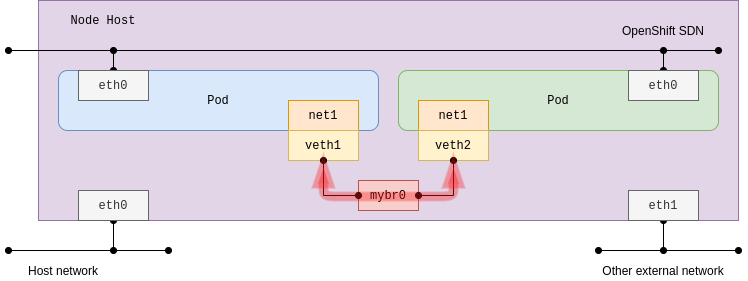
Bridge:

This acts as a network switch between multiple pods on the same node host. In its current form, a bridge interface is created that does not link any physical host interface. As a result, connections are not made to any external networks including other pods on the other host nodes:

Brudge

Configure the bridge plug-in with host-local IPAM. The default bridge name is cni0 by default if the name is not specified using bridge parameter:

apiVersion: "k8s.cni.cncf.io/v1"
kind: NetworkAttachmentDefinition
metadata:
  name: bridge-conf
spec:
  config: '{
      "cniVersion": "0.3.1",
      "type": "bridge",
      "bridge": "mybr0",
      "ipam": {
          "type": "host-local",
          "subnet": "192.168.12.0/24",
          "rangeStart": "192.168.12.10",
          "rangeEnd": "192.168.12.200"
      }
    }'
Host-device:

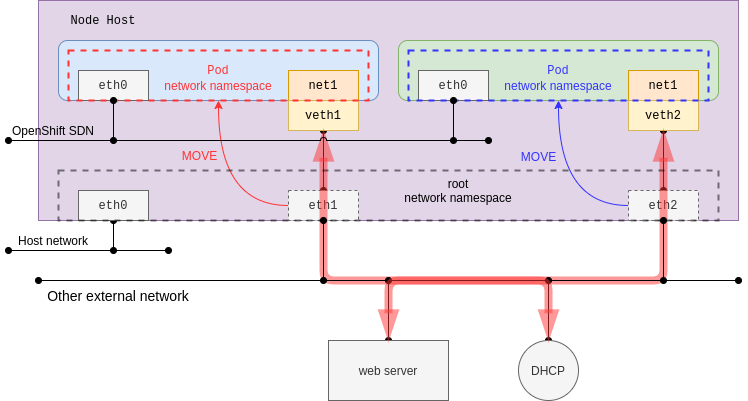
This plug-in makes a physical host interface move to a pod network namespace. When enabled, the specified host interface disappears in the root network namespace (default host network namespace). This behavior might affect re-creating the pod in place on the same host as the host interface may not be found as it is specified by host-device plug-in configuration.

Brudge

This time, dhcp IPAM is configured, and it would trigger the creation of the dhcp-daemon daemonset pods. The pod in daemon mode listens for an address from a DHCP server on Kubernetes, whereas the DHCP server itself is not provided. In other words, it requires an existing DHCP server in the same network. This demonstration shows you the MAC address of the parent is kept in the pod network namespace. Additionally, the source IP and MAC address can be identified by using an external web server access test.

Add the following configurations:

apiVersion: "k8s.cni.cncf.io/v1"
kind: NetworkAttachmentDefinition
metadata:
  name: host-device
spec:
  config: '{
      "cniVersion": "0.3.1",
      "name": "host-device-main",
      "type": "host-device",
      "device": "enp0s9",
      "ipam": {
          "type": "dhcp"
      }
    }'
ipvlan:

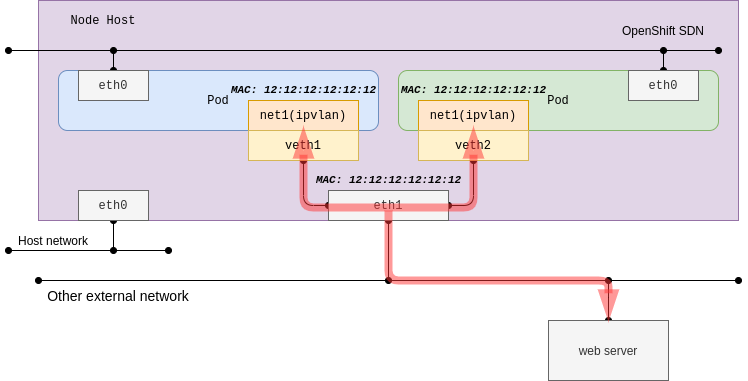
The ipvlan plug-in may be used in the event that there are limited MAC addresses that can be used. This issue is common on some switch devices that restrict the maximum number of MAC addresses per physical port due to port security configurations. When operating in most cloud providers, you should consider using ipvlan instead of macvlan as unknown MAC addresses are forbidden in VPC networks:

Brudge

The sub-interface of the ipvlan can use distinct IP addresses with the same MAC address of the parent host interface. So, it would not work well with a DHCP server which depends on the MAC addresses. Parent host interface acts as a bridge (switch) with L2 mode, and it acts as a router with L3 mode of the ipvlan plug-in.

apiVersion: "k8s.cni.cncf.io/v1"
kind: NetworkAttachmentDefinition
metadata:
  name: ipvlan
spec:
  config: '{
   "cniVersion": "0.3.1",
   "name": "ipvlan-main",
   "type": "ipvlan",
   "mode": "l2",
   "master": "enp0s9",
     "ipam": {
          "type": "host-local",
          "subnet": "172.17.9.0/24",
          "rangeStart": "172.17.9.201",
          "rangeEnd": "172.17.9.205",
          "gateway": "172.17.9.1"
     }
   }'
Macvlan:

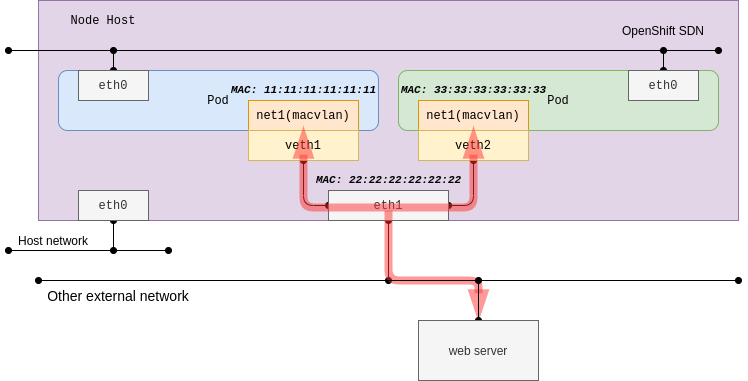
With macvlan, it’s simple to use as it aligns to traditional network connectivity. Since the connectivity is directly bound with the underlying network using sub-interfaces each having MAC address.

Brudge

macvlan generates MAC addresses per the sub-interfaces, and in most cases, Public Cloud Platforms are not allowed due to their security policy and Hypervisors have limited capabilities. For the RHV (Red Hat Virtualization) use case, you will need to change No network filter on your network profile before executing the test. For vSwitch in vSphere environments, similar relaxed policies need to be applied. The test procedure is almost the same as ipvlan, so it is easy to compare both plug-ins.

Macvlan has multiple modes. In this example, bridge mode will be configured. Refer to MACVLAN documentation for more information on the other mode which will not be demonstrated.

apiVersion: "k8s.cni.cncf.io/v1"
kind: NetworkAttachmentDefinition
metadata:
  name: macvlan
spec:
  config: '{
    "cniVersion": "0.3.1",
    "name": "macvlan-main",
    "type": "macvlan",
    "mode": "bridge",
    "master": "enp0s9",
      "ipam": {
            "type": "static"
      }
    }'

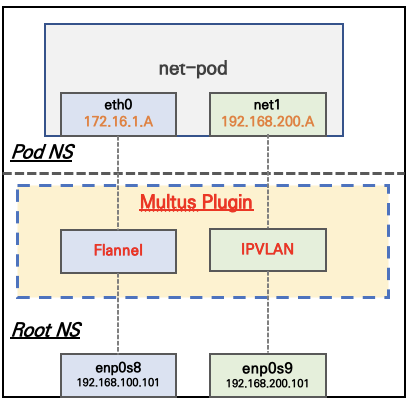
Creating a pod that attaches an additional interface

Infra

Deploy a IPVLAN Type NetworkAttachmentDefinition:

cat <<EOF | kubectl create -f -
apiVersion: "k8s.cni.cncf.io/v1"
kind: NetworkAttachmentDefinition
metadata:
  name: ipvlan-def
spec:
  config: '{
      "cniVersion": "0.3.1",
      "type": "ipvlan",
      "master": "enp0s9",
      "mode": "l2",
      "ipam": {
        "type": "host-local",
        "subnet": "192.168.200.0/24",
        "rangeStart": "192.168.200.201",
        "rangeEnd": "192.168.200.205",
        "gateway": "192.168.200.1"
      }
    }'
EOF

Let’s go ahead and create a pod (that just sleeps for a really long time) with this command:

cat <<EOF | kubectl create -f -
apiVersion: v1
kind: Pod
metadata:
  name: net-pod
  annotations:
    k8s.v1.cni.cncf.io/networks: ipvlan-def
spec:
  containers:
  - name: netshoot-pod
    image: nicolaka/netshoot
    command: ["tail"]
    args: ["-f", "/dev/null"]
  terminationGracePeriodSeconds: 0
---
apiVersion: v1
kind: Pod
metadata:
  name: net-pod2
  annotations:
    k8s.v1.cni.cncf.io/networks: ipvlan-def
spec:
  containers:
  - name: netshoot-pod
    image: nicolaka/netshoot
    command: ["tail"]
    args: ["-f", "/dev/null"]
  terminationGracePeriodSeconds: 0
EOF

Check the ips in the pod:

kubectl exec -it net-pod -- ip addr
1: lo: <LOOPBACK,UP,LOWER_UP> mtu 65536 qdisc noqueue state UNKNOWN group default qlen 1000
    link/loopback 00:00:00:00:00:00 brd 00:00:00:00:00:00
    inet 127.0.0.1/8 scope host lo
       valid_lft forever preferred_lft forever
    inet6 ::1/128 scope host 
       valid_lft forever preferred_lft forever
3: eth0@if10: <BROADCAST,MULTICAST,UP,LOWER_UP> mtu 1450 qdisc noqueue state UP group default 
    link/ether 06:56:cf:cb:3e:75 brd ff:ff:ff:ff:ff:ff link-netnsid 0
    inet 10.244.0.5/24 brd 10.244.0.255 scope global eth0
       valid_lft forever preferred_lft forever
    inet6 fe80::456:cfff:fecb:3e75/64 scope link 
       valid_lft forever preferred_lft forever
4: net1: <BROADCAST,MULTICAST,UP,LOWER_UP> mtu 1500 qdisc noqueue state UNKNOWN group default 
    link/ether 08:00:27:a0:41:35 brd ff:ff:ff:ff:ff:ff
    inet 192.168.200.201/24 brd 192.168.200.255 scope global net1
       valid_lft forever preferred_lft forever
    inet6 fe80::800:2700:1a0:4135/64 scope link 
       valid_lft forever preferred_lft forever

kubectl exec -it net-pod2 -- ip addr
1: lo: <LOOPBACK,UP,LOWER_UP> mtu 65536 qdisc noqueue state UNKNOWN group default qlen 1000
    link/loopback 00:00:00:00:00:00 brd 00:00:00:00:00:00
    inet 127.0.0.1/8 scope host lo
       valid_lft forever preferred_lft forever
    inet6 ::1/128 scope host 
       valid_lft forever preferred_lft forever
3: eth0@if9: <BROADCAST,MULTICAST,UP,LOWER_UP> mtu 1450 qdisc noqueue state UP group default 
    link/ether 8e:8f:68:f8:80:2c brd ff:ff:ff:ff:ff:ff link-netnsid 0
    inet 10.244.0.4/24 brd 10.244.0.255 scope global eth0
       valid_lft forever preferred_lft forever
    inet6 fe80::8c8f:68ff:fef8:802c/64 scope link 
       valid_lft forever preferred_lft forever
4: net1: <BROADCAST,MULTICAST,UP,LOWER_UP> mtu 1500 qdisc noqueue state UNKNOWN group default 
    link/ether 08:00:27:a0:41:35 brd ff:ff:ff:ff:ff:ff
    inet 192.168.200.202/24 brd 192.168.200.255 scope global net1
       valid_lft forever preferred_lft forever
    inet6 fe80::800:2700:2a0:4135/64 scope link 
       valid_lft forever preferred_lft forever

Ping test:

# ping own ip
kubectl exec -it net-pod -- ping -c 1 -I net1 192.168.200.201
PING 192.168.200.201 (192.168.200.201) from 192.168.200.201 net1: 56(84) bytes of data.
64 bytes from 192.168.200.201: icmp_seq=1 ttl=64 time=0.024 ms

--- 192.168.200.201 ping statistics ---
1 packets transmitted, 1 received, 0% packet loss, time 0ms
rtt min/avg/max/mdev = 0.024/0.024/0.024/0.000 ms

# ping net-pod2's ip
kubectl exec -it net-pod -- ping -c 1 -I net1 192.168.200.201
PING 192.168.200.202 (192.168.200.202) from 192.168.200.201 net1: 56(84) bytes of data.
64 bytes from 192.168.200.202: icmp_seq=1 ttl=64 time=0.040 ms

--- 192.168.200.202 ping statistics ---
1 packets transmitted, 1 received, 0% packet loss, time 0ms
rtt min/avg/max/mdev = 0.040/0.040/0.040/0.000 ms

# ping dw
kubectl exec -it net-pod -- ping -c 1 -I net1 192.168.200.10
PING 192.168.200.1 (192.168.200.1) from 192.168.200.201 net1: 56(84) bytes of data.
64 bytes from 192.168.200.1: icmp_seq=1 ttl=64 time=0.217 ms

--- 192.168.200.1 ping statistics ---
1 packets transmitted, 1 received, 0% packet loss, time 4ms
rtt min/avg/max/mdev = 0.217/0.217/0.217/0.000 ms